
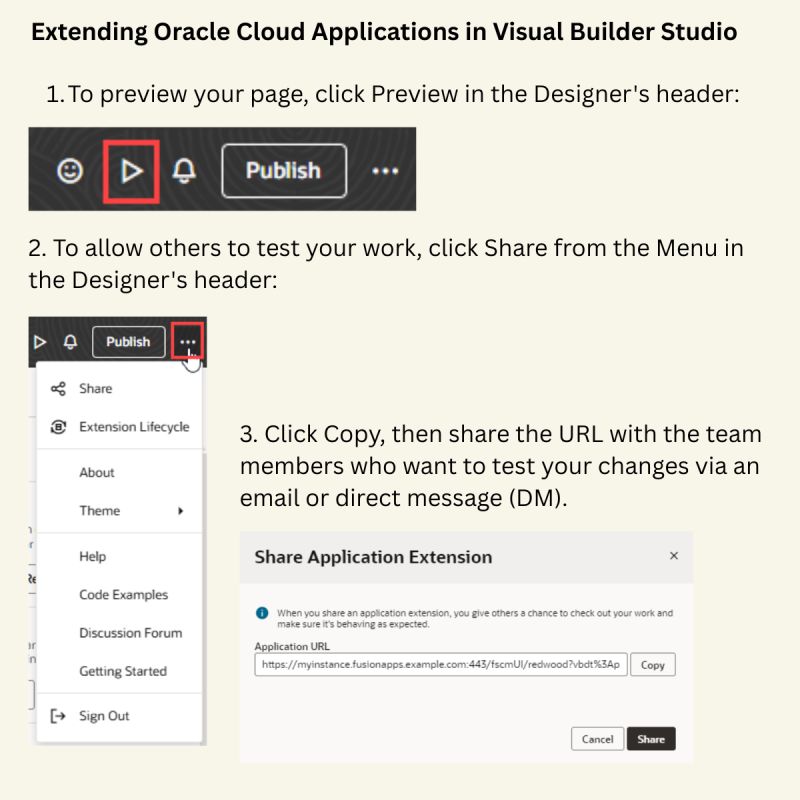
For those who aren’t aware, here’s a quick tip on how to test your VBS customizations before publishing them.
🔹 Preview Your Page
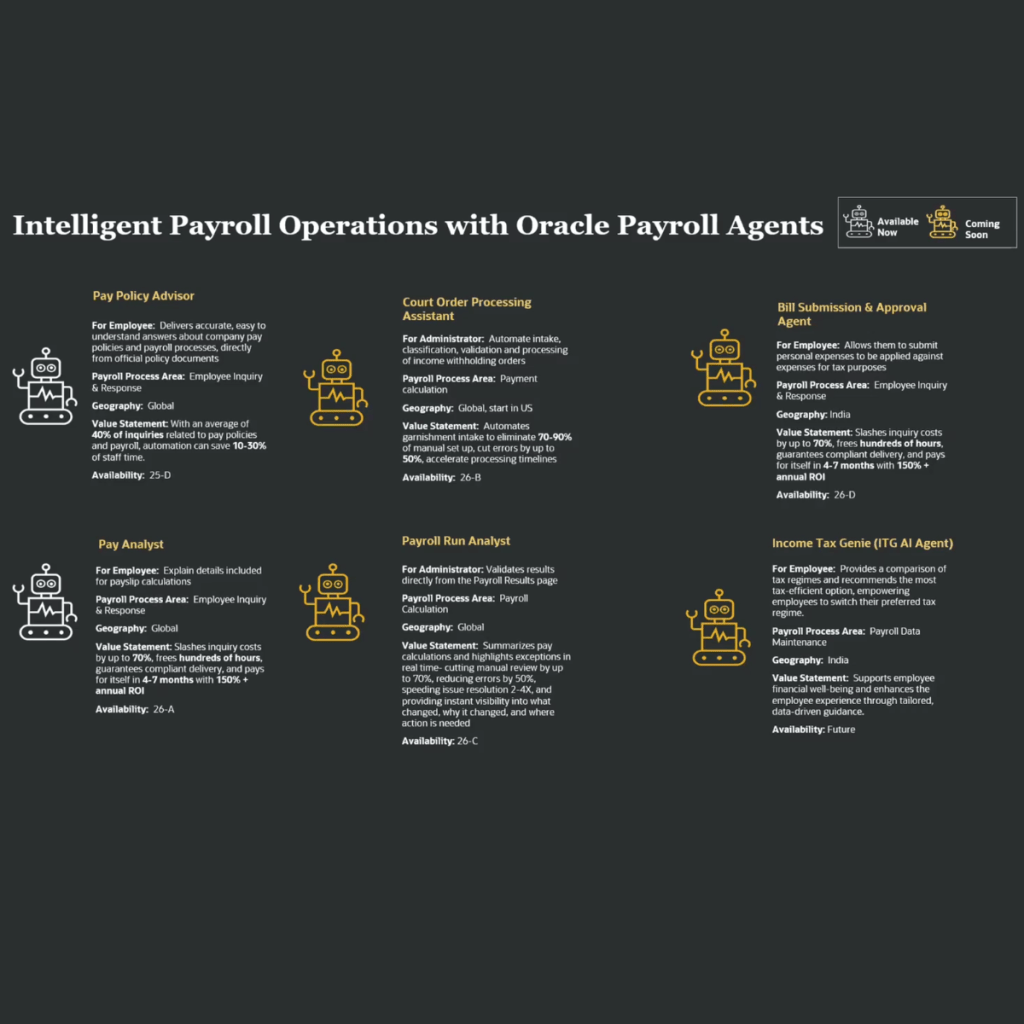
Once you have made your customizations / configurations in your redwood page, such as setting defaults, adding business rule validations, enabling / disabling sections, enabling guided journeys, or even embedding an AI agent, use the Preview option to check how everything looks and works. It’s a great way to see your changes in action before publishing.
🔹 Share with Your Team
Once you are happy with the preview, click Menu > Share to generate a link. You can then share this link with your team so they can test your changes too. For example, if you have embedded a payslip agent, ask your team to test it with their self-service login before you hit publish. This way, you get feedback without making it live just yet. Just remember to click Share before copying the URL to make it work.
Let’s connect
Archives
- Career Talk (7)
- Journey Journal (11)
- My Oracle Journey (7)
- Reading Corner (3)
- Leadership (45)
- Oracle (63)



 Lead with Mohana
Leave a comment