
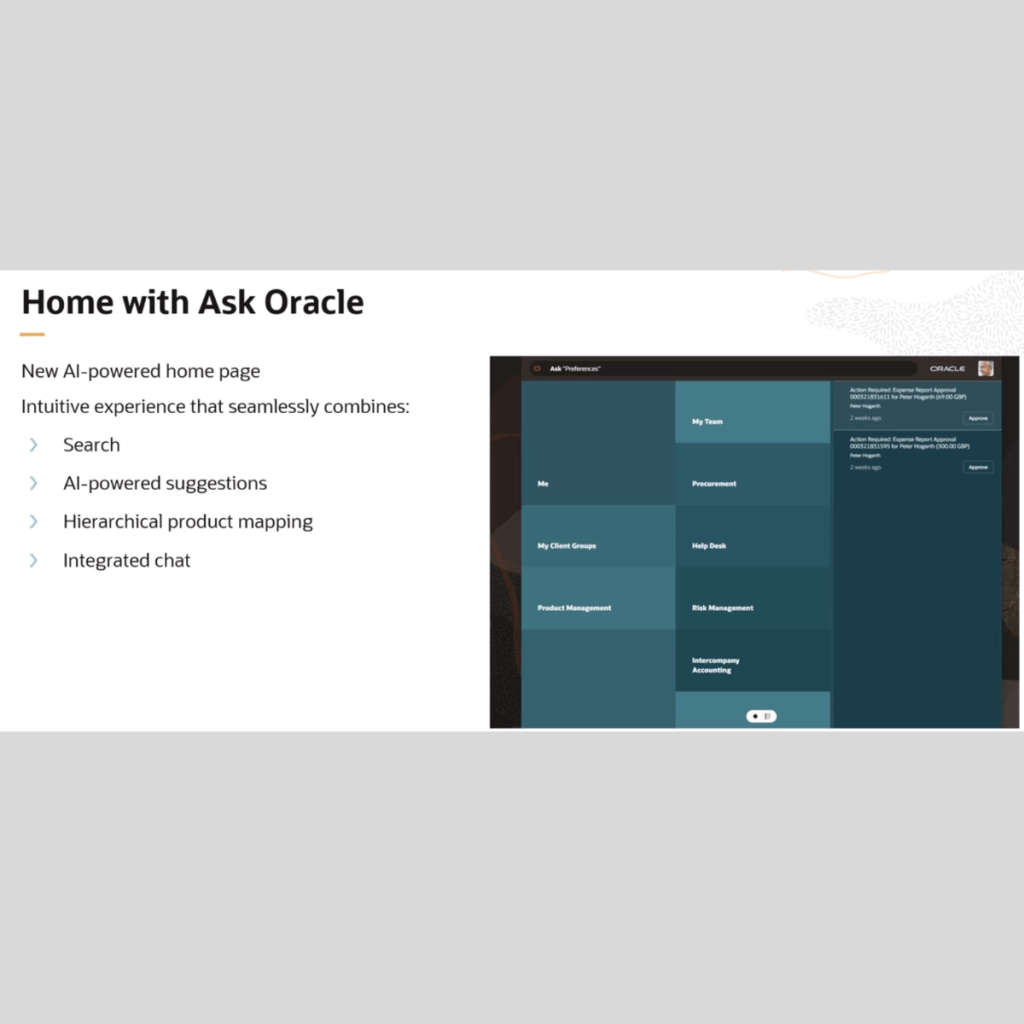
𝗛𝗼𝗺𝗲 𝘄𝗶𝘁𝗵 𝗔𝘀𝗸 𝗢𝗿𝗮𝗰𝗹𝗲 improves how users navigate Oracle Fusion. In many cases, the challenge is not the system itself. It is how quickly users can find what they need.
Users often spend time navigating through menus, searching for the right page, or remembering where tasks are located. Home with Ask Oracle simplifies this.
𝗕𝗲𝗻𝗲𝗳𝗶𝘁𝘀 𝗼𝗳 𝗛𝗼𝗺𝗲 𝘄𝗶𝘁𝗵 𝗔𝘀𝗸 𝗢𝗿𝗮𝗰𝗹𝗲
1. Faster navigation: Users can search and go directly to tasks or pages instead of navigating through multiple menus.
2. Fewer clicks
3. Natural language interaction
4. Quick access to recent activity
5. AI-driven suggestions
6. Better experience for occasional users
7. Reduced dependency on training
8. Improved user confidence
9. Cleaner and modern interface -Redwood-based design provides a simpler, more focused workspace.
10. Better adoption of the system – Easier navigation leads to higher user acceptance and usage.
11. Centralized starting point – Brings search, suggestions, and navigation into one unified home experience.
𝗛𝗼𝘄 𝘁𝗼 𝗲𝗻𝗮𝗯𝗹𝗲 𝗛𝗼𝗺𝗲 𝘄𝗶𝘁𝗵 𝗔𝘀𝗸 𝗢𝗿𝗮𝗰𝗹𝗲
The setup is straightforward, but a few checks make all the difference.
1. Create a sandbox: Create a new sandbox (or use an existing one) and include the Appearance tool.
2. Open Appearance: From the sandbox Tools menu, select Appearance.
3. Create or update a theme: Create a Redwood theme and choose Home with Ask Oracle as the home page layout.
4. Apply the theme and proceed. If prompted, run the scan to resolve any unsupported expressions.
5. Validate the home page. Click the Home icon and check the page.
If the home page loads correctly, you are good to go.
If it appears blank, don’t worry – this is a known check. If the home page is blank -this usually comes down to search services or indexing.
Start with this:
1. Go to the Scheduled Processes work area using https://<<fa-host>>/fscmUI/faces/FuseOverview?fndGlobalItemNodeId=itemNode_tools_scheduled_processes_fuse_plus Replace <<fa-host>> with your specific Fusion Applications host URL.
2. Schedule a new process and select ESS process to check Search Cloud Service availability.
3. Submit the process and after it completes, check the OSCS status in the log file of the process.
If it shows failure, contact your help desk to resolve the OSCS issue.
If it shows success, do these steps:
In Scheduled Processes, schedule a new process and select Create Index for Ask Oracle.
Set the Re-create Index parameter as Yes and submit the process.
After the job runs successfully, the home should display data correctly. If the job fails, wait till the job is automatically retried twice, which usually takes about 3 to 8 minutes. If the job continues to fail and the home still doesn’t display data, contact your help desk for further assistance.
4. Publish the sandbox.
Let’s connect
Archives
- AI (1)
- Career Talk (7)
- Journey Journal (32)
- Journey of Impact (5)
- Professional Journey (23)
- Reading Corner (3)
- Leadership (65)
- Oracle (75)
- Oracle Apex (2)
- Oracle Fusion AI Agent Studio (24)
- Oracle HCM Cloud (46)
- Oracle Knowledge Share (3)








Leave a Reply